
Docs / GET STARTED
3. Connect Date Sources
Link your tools and platforms to HARVEN so it can run controls on your environment. This guide walks you through the full setup flow.
Go to data sources settings
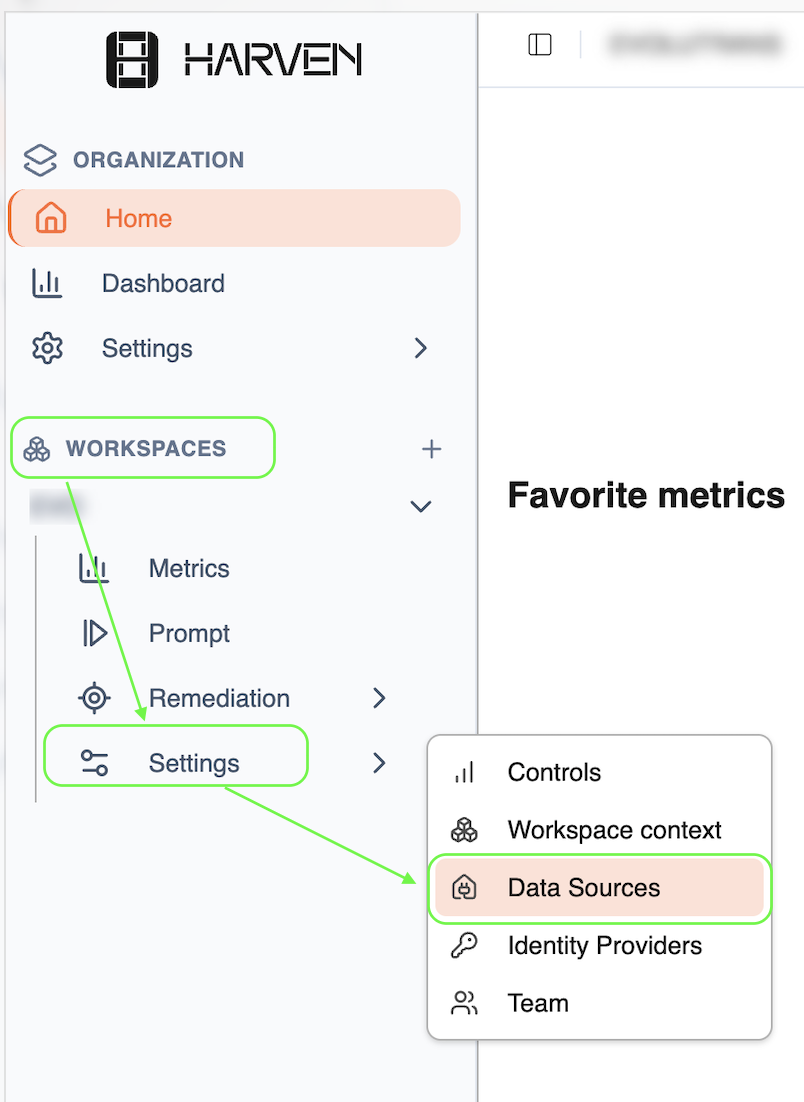
Navigate to Workspaces → Settings → Data Sources.
Add your target data source
You'll see the full list of available integrations.
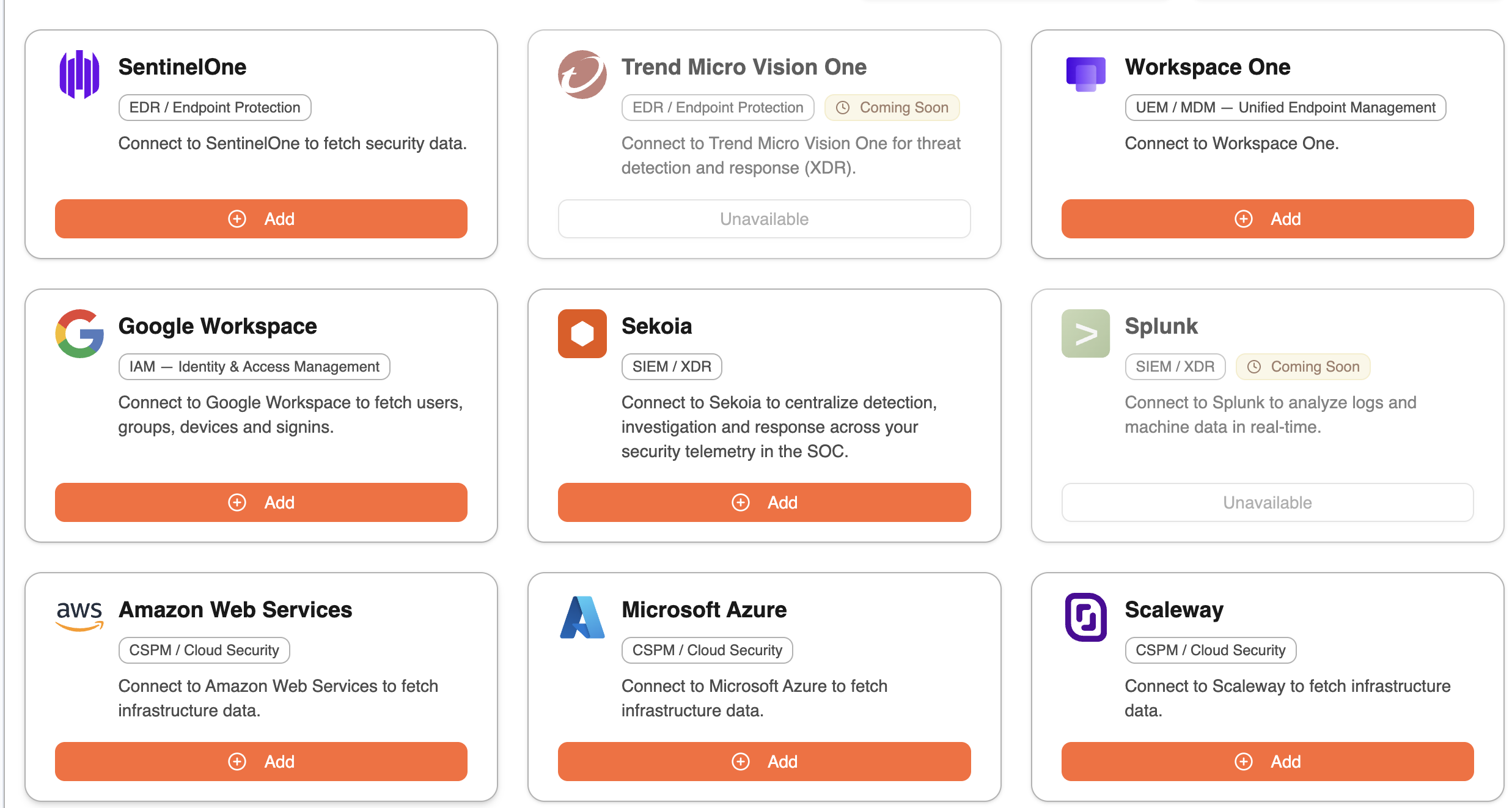
Find the integration you want to connect and click Add. A configuration page will open with all the required fields and credentials needed for that source.
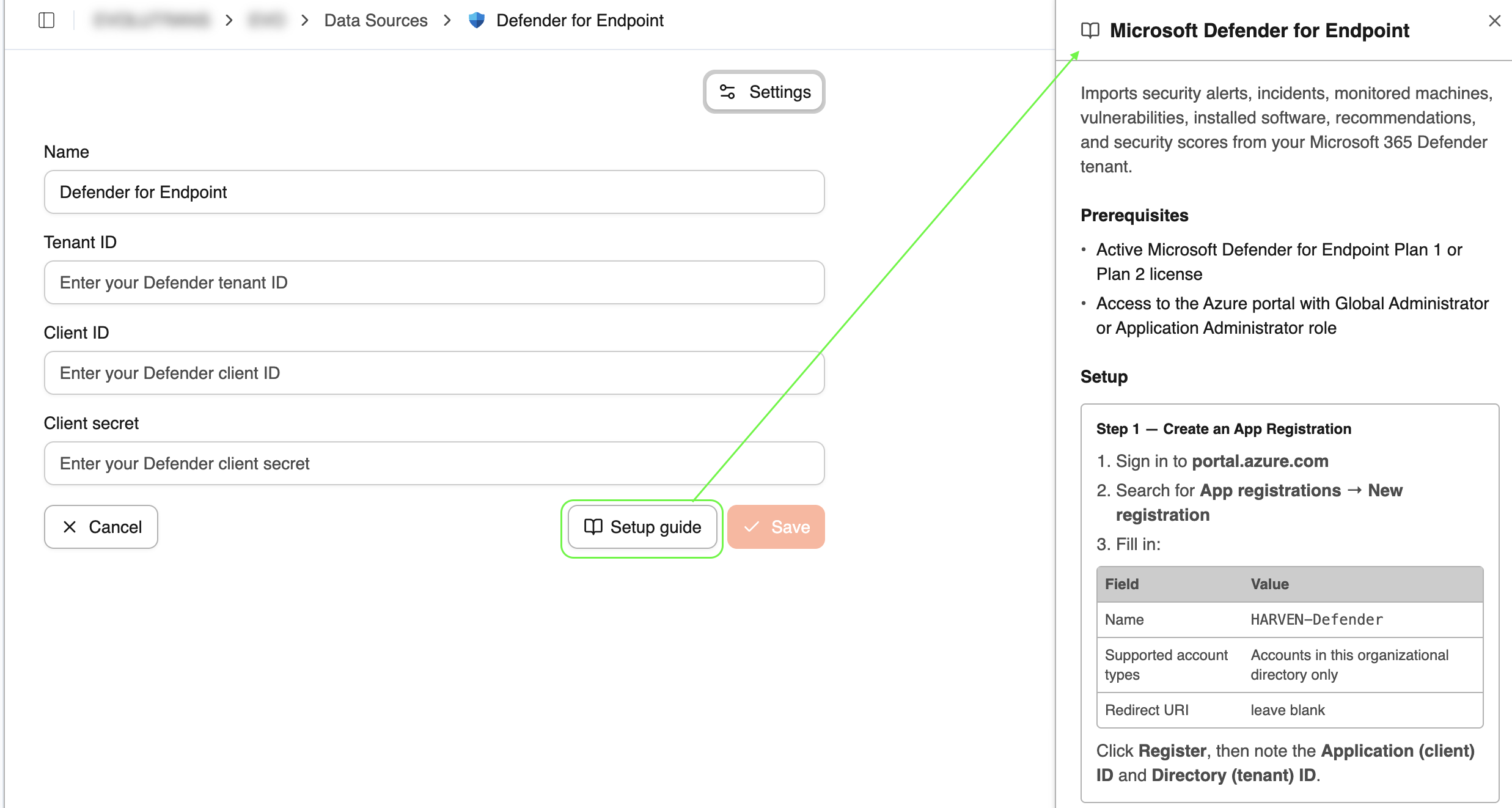
Compile the configuration page and save it
A configuration page will open with all the required fields and credentials needed for that source.
Follow the setup guide if needed
Verify your connection
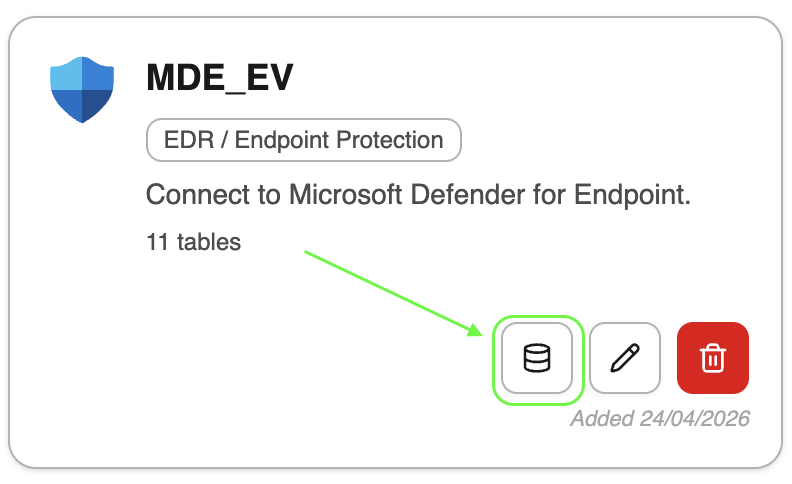
Once added, your data source will appear in the Configured sources list.
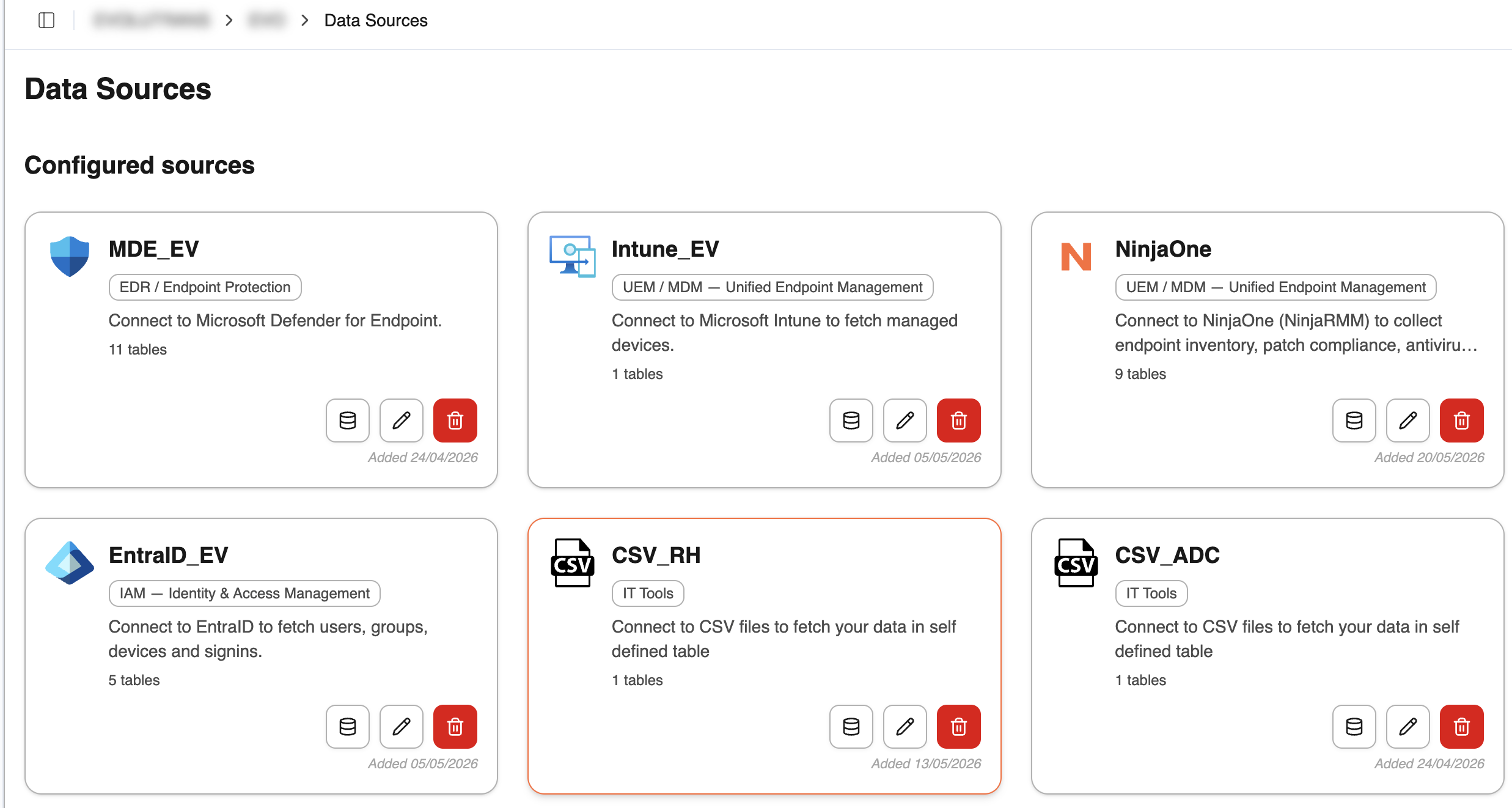
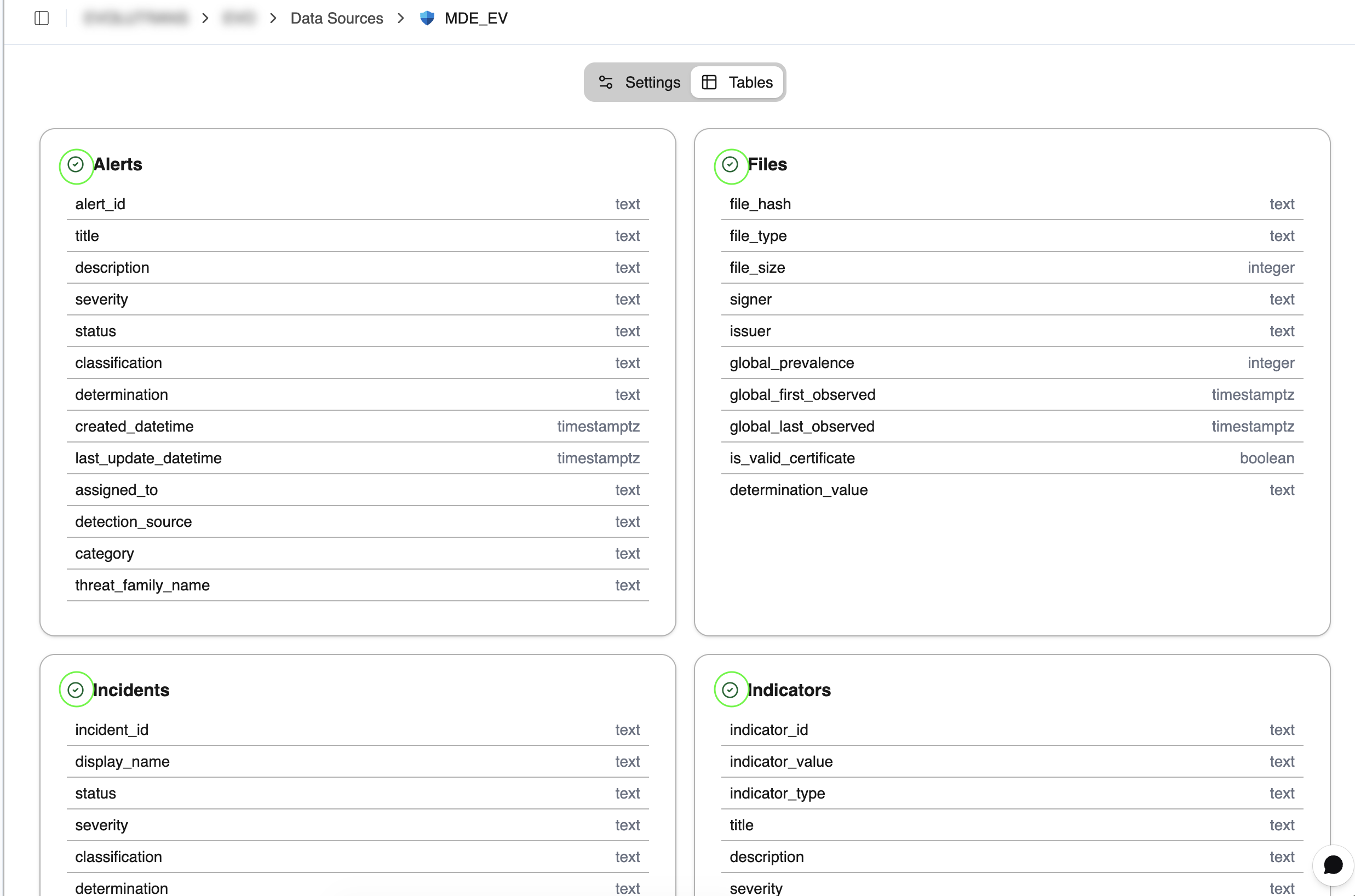
Click the database icon to check the connection status.
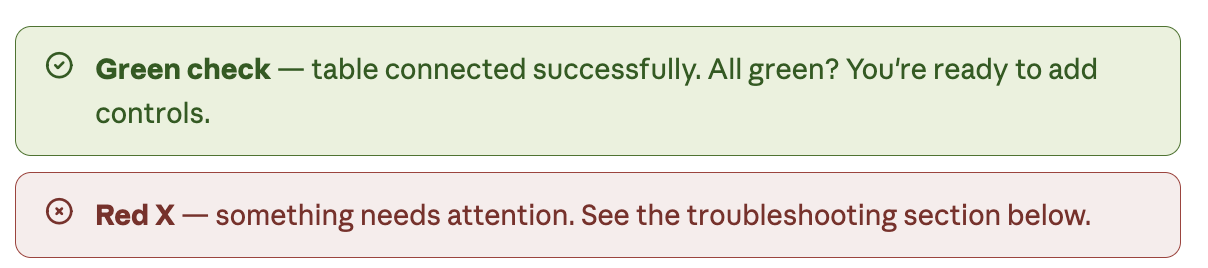
Each table in your source will show one of the following:
Troubleshooting & support
If any table shows a red ❌ check that your API keys and permissions are correct, then try reconnecting. If the issue persists, reach out to us at [email protected]
Need to connect a custom data source or a not listed one in HARVEN? Let us know at [email protected] : We can add them in a few days.
For any question, email us at [email protected] , we're here to help you 😉.
Was this helpful?