
Create a new Metric from a Prompt
There are two ways to save a prompt result. The most common one is as a report , and you can learn more about this method here.
The other way is as a Metric. HARVEN will automatically suggest saving your prompt result as a metric or as a report based on the type of output returned:
If the result is a numeric value (e.g. a count, percentage, hours), you will have the option to save it as a metric.
If the result is a list, you can generate a report from your prompt : either as a one-time export or as a recurring scheduled report.
Lest explore how to save your prompt as a Metric
Get a Prompt Result You're Happy With
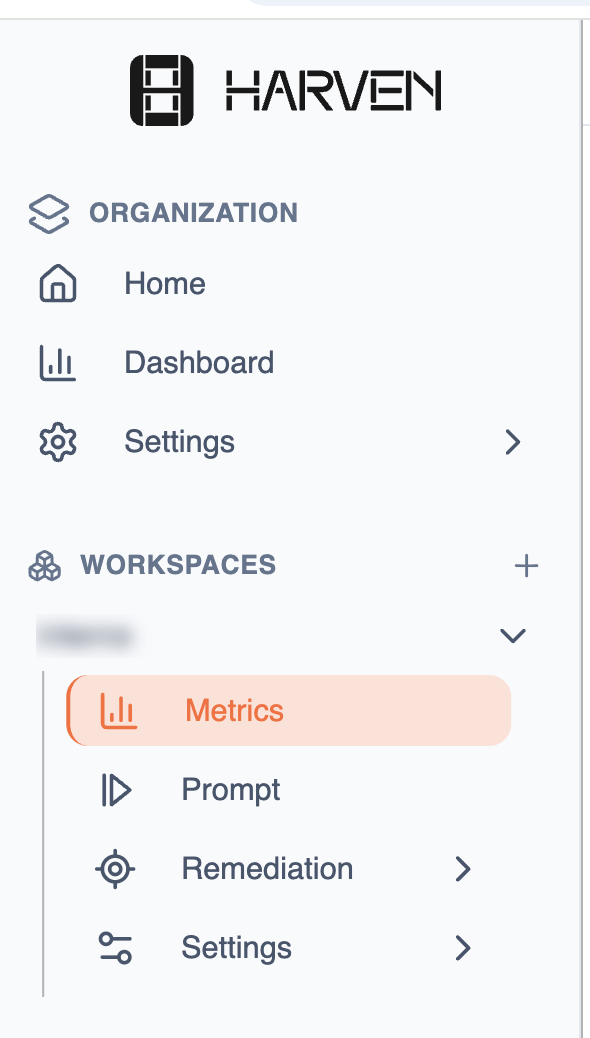
From the Prompt section Workspaces → Your target workspace → Prompt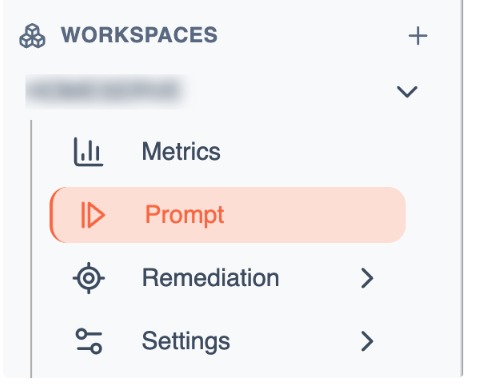
Run your prompt from the Prompts section of your workspace and review the results. if the result is a numeric value you're ready to create a new metric.How to create your new metric
If the result of your prompt is a numeric value you're ready to create a new metric.
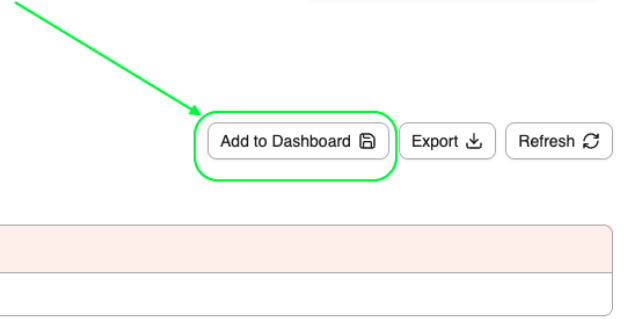
You just need to click on “Add to Dashboard“
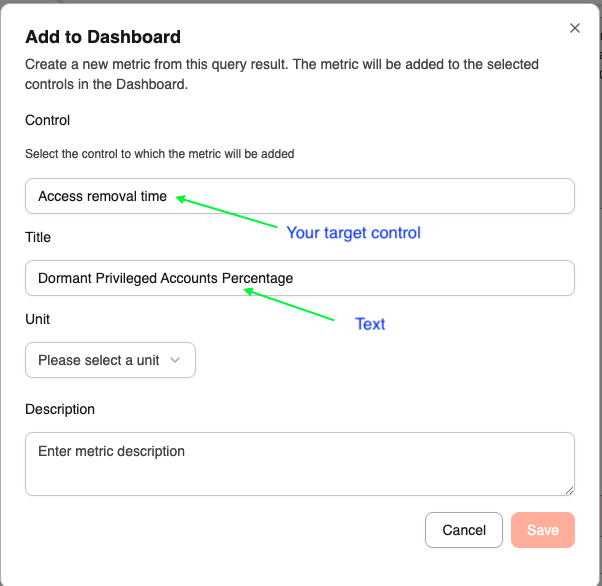
Select the related control and choose a title
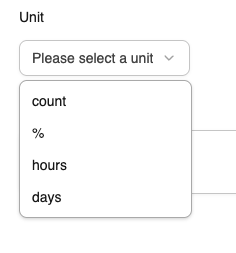
And the unit in you will to see your newmetric
From your Workspaces → Target Workspace → Metrics
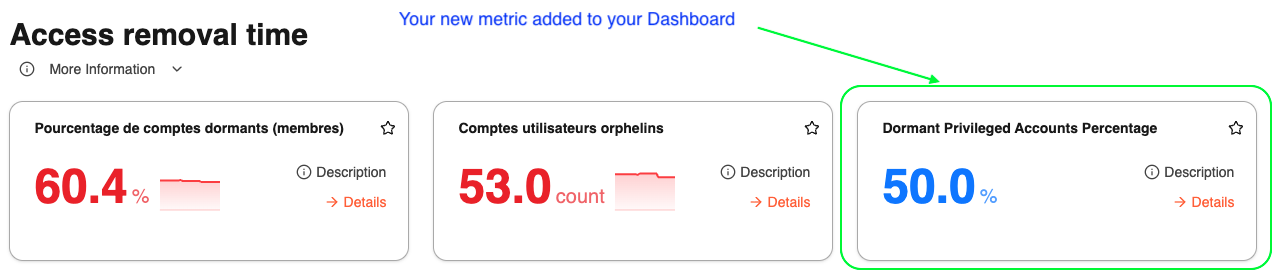
You will able to check your new metrics
Was this helpful?